
Click on image to enlarge.
Sections:
Updated: 1/24/2015
Learning objective: (2) Explain the purpose of a batch file
Click on image to enlarge.
As you go through this unit, keep in mind that we are not learning MS-DOS but the command line interface of Windows which is *based* on MS-DOS. The commands and concepts of the command line interface (CLI) of Windows are based on the use of MS-DOS commands for backwards compatibility. The more you know about MS-DOS, the better prepared you will be to understand the CLI of Windows.
In MS-DOS and Windows, a batch file is a text file containing a series of commands intended to be executed by the command interpreter. When a batch file is run, the shell program (usually CMD.EXE or COMMAND.COM) reads the file and executes its commands, normally line-by-line. Batch files are useful for running a series of executables automatically. Many system administrators use them to automate tedious processes. Although batch files support elementary program flow commands such as if and goto, they are not well-suited for general-purpose programming. Batch file are ASCII file. The contain a series of DOS commands just as if you were typing them in by hand at the DOS prompt. They end with a .BAT extension. Once introduced to your system, batch files basically become DOS commands for your system.
AUTOEXEC.BAT
In MS-DOS, a batch file can be started from the command line by typing its name followed by any required parameters and pressing the "enter" key. When MS-DOS loads, the file AUTOEXEC.BAT is automatically executed, so any commands that need to be run to set up the MS-DOS environment for use could be placed in this file. Computer users would have the autoexec file set up the system date and time, initialize the MS-DOS environment, load any resident programs or device drivers, or initialize network connections and assignments. [Wikipedia]
This example represents a modest batch file. It is made up of the commands to copy com files from the C drive to the \111\com as a backup. The top portion of the batch file uses special batch file commands that will be covered in this unit. The lower half of this batch file lists the DOS commands used to backup the com files.
When the batch file is executed, note the output of each line from the batch file to the screen. When executing batch files, I recommend you use the full name, ending with bat, to minimize any confusion as to which file you want to execute based on the succession of commands since the batch file is now a system command on your computer.
@ECHO
The @ECHO command suspends the echo effect for the ECHO command which turns off the echo effect for the remainder of the batch file.
REM
The REM command allows developers to enter a comment into the batch file which will only be seen when the code is opened in a text editor.
ECHO
The ECHO command will allow text and other events to be displayed to the console during execution.
Thinking: Why sequence a series of DOS commands in a single file?
Key terms: .BAT, AUTOEXEC.BAT, batch file, commands
Resources:
To maximize your learning, please visit these Web sites and review their content
to help reinforce the concepts presented in this section.
Quick links:
Batch files @ Wikipedia
Batch Files (Scripts) in Windows @ commandwindows.com
Notes on navigation: Click inside the frame to navigate the embedded Web page. - Click outside the frame to navigate this page to scroll up/down between the embedded Web pages. - Click on the frame title to open that page in a new tab in most browsers. - Click on the the "Reload page" link to reload the original page for that frame.
Batch files @ Wikipedia |
Reload page
Batch Files (Scripts) in Windows @ commandwindows.com |
Reload page
Notes:
Learning objective: (2) Explain how to create a batch file with an text editor in Windows

Click on image to enlarge.
You will most likely need to use a Windows text editor like Notepad or Notepad2 to create a batch file. See link for Notepad2. It is a free portable app and the notes at the bottom of the page for downloading and using. Notepad2 does not require admin permission to use on the desktop or portable storage device like a USB drive.
Why use a Text Editor?
There are important differences between plain text files created by a text editor and document files created by word processors such as Microsoft Word and WordPerfect. A plain text file uses a simple character set such as ASCII to represent numbers, letters, and a small number of symbols. The only non-printing characters in the file that can be used to format the text are spaces, tabs, and newlines. Word processor documents generally contain formatted text, such as enabling text to appear in boldface and italics, to use multiple fonts, and to be structured into columns and tables. These capabilities were once associated only with desktop publishing, but are now available in the simplest word processor. [Wikipedia]
Syntax highlighting
Syntax highlighting contextually highlights software code and other text that appears in an organized or predictable format. (Check your editor for managing these options.) [Wikipedia]
Text formatting
Text editors often provide basic formatting features like line wrap, auto-indentation, bullet list formatting, comment formatting, syntax highlighting and so on. (Check your editor for managing these options.) [Wikipedia]
UTF-8 encoding ~= ASCII
The first 128 characters of Unicode, which correspond one-to-one with ASCII, are encoded using a single octet with the same binary value as ASCII, making valid ASCII text valid UTF-8-encoded Unicode as well. (Check your editor for managing these options.) [Wikipedia]
Newline issue
In computing, a newline, also known as a line ending, end of line (EOL), or line break, is a special character or sequence of characters signifying the end of a line of text. The actual codes representing a newline vary across operating systems, which can be a problem when exchanging text files between systems with different newline representations. The different newline conventions often cause text files that have been transferred between systems of different types to be displayed incorrectly. For example, files originating on Unix or Apple Macintosh systems may appear as a single long line on some Windows programs. Conversely, when viewing a file originating from a Windows computer on a Unix system, the extra CR may be displayed as ^M or cr at the end of each line or as a second line break. (Check your editor for managing these options.) [Wikipedia]
Thinking: Why use a text editor and not the basic Notepad that comes with Windows?
Key terms: ASCII, UTF-8, newline, syntax highlighting, text editor
Resources:
To maximize your learning, please visit these Web sites and review their content
to help reinforce the concepts presented in this section.
Quick links:
Text Editor @ Wikipedia
Comparison of Text Editors @ Wikipedia
Newline in documents @ Wikipedia
Notepad2 @ portableapps.com
Notes on navigation: Click inside the frame to navigate the embedded Web page. - Click outside the frame to navigate this page to scroll up/down between the embedded Web pages. - Click on the frame title to open that page in a new tab in most browsers. - Click on the the "Reload page" link to reload the original page for that frame.
Text Editor @ Wikipedia |
Reload page
Comparison of Text Editors @ Wikipedia |
Reload page
Newline in documents @ Wikipedia |
Reload page
Notepad2 @ portableapps.com |
Reload page
Notes:
Learning objective: (1) Identify common batch file commands
Click on image to enlarge.
Special batch file commands include: REM for placing remarks in the batch file to the developer, ECHO display information to user, replaceable parameters allow data to be passed from the command line into the batch file, GOTO allows the processing to jump to a new location in a batch file, labels name a section in a batch file, IF select different courses of action to be taken, and START allows you to start a Windows application from inside a batch file. (Technically, START is *not* a batch file command but is often used in batch files so we will introduce it here.) There are many other special batch commands that we will not be covering.
REM
The REM command allows developers to enter a comment into the batch file which will only be seen when the code is opened in a text editor.
ECHO
The ECHO command will allow text and other events to be displayed to the console during execution.
GOTO
The GOTO command allows the project to jump to new locations identified by a :label in the batch file. This command is usually associated with the IF command.
IF
The IF command allows for different actions to be taken during execution based on changes in the environment. This command is usually associated with passing parameters.
START
The START command will allow a Windows application to start and run in the GUI window.
%n passing parameters (0-9)
Passing parameters allow data to be passed at run time from the command line into the batch file. This data can be used by the IF command to determine what the batch file should do.
Thinking: Why are there special commands just for batch files?
Key terms: ECHO, GOTO, IF, START, commands, parameters
Resources:
To maximize your learning, please visit these Web sites and review their content
to help reinforce the concepts presented in this section.
Quick links:
Information on batch files @ computerhope.com
Notes on navigation: Click inside the frame to navigate the embedded Web page. - Click outside the frame to navigate this page to scroll up/down between the embedded Web pages. - Click on the frame title to open that page in a new tab in most browsers. - Click on the the "Reload page" link to reload the original page for that frame.
Information on batch files @ computerhope.com |
Reload page
Notes:
Learning objective: (2) Explain the use of the REM command in batch files

Click on image to enlarge.
The REM command allows developer to put comments or remarks into a batch file. Any line that starts with REM will not be processed during execution. I strongly recommend that you generously comment your batch file. It will greatly assist with any future modification or questions about the role of the batch file. It is a good practice to place at the top of the batch file a line with the name of the batch file, date of creation or modification, and author. Below that, it is good to add a brief description as to the purpose of the batch file. It may seem apparent to you when you create it what the purpose is, but over time you may forget or others may not understand your approach.
Note the remarks that identify the name and author and include a description of the purpose of the batch file. It is a good idea to add the name of the batch file since the batch file may change as it is copied to new locations and purposes.
Name of batch file
All batch files should start with the name of the batch file. Over time, the original name might change but the initial name is still intact.
Date
All batch files should have the date of creation and modification to alert developers of the history of the batch file.
Author
All batch files should have the author's name included so other developers know who created the batch file.
Description
All batch files should have a description as to the purpose of the batch file. Since batch files can be difficult to decipher at times, it is much cheaper to provide the description at development than to ask developers later to spend valuable time trying to decipher what the batch file is doing before they try to modify its contents.
Thinking: Why put developer comments in a batch file?
Key terms: REM, comment
Resources:
To maximize your learning, please visit these Web sites and review their content
to help reinforce the concepts presented in this section.
Quick links:
REM @ ss64.com
REM @ Wikipedia
Notes on navigation: Click inside the frame to navigate the embedded Web page. - Click outside the frame to navigate this page to scroll up/down between the embedded Web pages. - Click on the frame title to open that page in a new tab in most browsers. - Click on the the "Reload page" link to reload the original page for that frame.
Notes:
Learning objective: (2) Explain the use of the ECHO command in batch files

Click on image to enlarge.
The ECHO command controls the flow of information to the screen for the user's benefit. The "@" at symbol added to a command suspends the entering and execution message of a single DOS command. The ECHO command itself has four uses. The ECHO ON is the default setting in DOS. It displays the execution of all lines of the batch file to the screen. ECHO OFF suspends the entering and execution message of all DOS commands below it. ECHO text sends the text message to the screen. And ECHO. period creates a blank line on the screen.
ECHO text
ECHO text displays text to the console. Note the space between ECHO and the text.
ECHO ON | off
ECHO ON | off enables the use of the ECHO command. ECHO ON allows developers to see the commands being executed on the command line during execution. Note the space between ECHO and the text. ECHO ON is the default setting.
ECHO.
ECHO. will create a blank line to the console. Note there is no space between ECHO and the period.
@
@ suspends the echoing to the console for a single line in the batch file.
@ECHO OFF
@ECHO OFF turns off echoing for the remainder of the batch file including this line.
Thinking:
Key terms: @, ECHO, console
Resources:
To maximize your learning, please visit these Web sites and review their content
to help reinforce the concepts presented in this section.
Quick links:
ECHO @ ss64.com
ECHO @ Wikipedia
Notes on navigation: Click inside the frame to navigate the embedded Web page. - Click outside the frame to navigate this page to scroll up/down between the embedded Web pages. - Click on the frame title to open that page in a new tab in most browsers. - Click on the the "Reload page" link to reload the original page for that frame.
ECHO @ Wikipedia |
Reload page
Notes:
Learning objective: (3) Demonstrate the use of the ECHO command

Click on image to enlarge.
In this batch file example, note the "@" (at) symbol before the ECHO OFF command at the top of the screen. The user will not see the execution of the ECHO OFF command on the screen. Note the use of the ECHO to send a message to the screen and ECHO period to add a blank line. Also note the use of white space to add readability to the batch file.
When this batch file is executed, note the ECHO text at the top of the screen.
Text top of screen
The CLS cleared the screen so the results of the batch file started at the top of a clean screen.
Results of DIR
Note that the results of the DIR command.
Thinking:
Key terms:
Notes:
Learning objective: (2) Explain the use of replaceable parameters in batch files

Click on image to enlarge.
Replaceable parameters allow you to pass data from the command line into the batch file when it is executed. There is a corresponding 1:1 relationship between what is entered on the command line and the replaceable parameter referenced in the batch file. These make batch files significantly more versatile. In the batch file, the replaceable parameter is referenced by a percent sign followed by a number between 1 and 9. Percent zero references the command entered on the command line.
%0 batch file
%0 is the reference to the command being processed. When used with a batch file, it is the name of the batch file.
%1 - %9 replaceable parameters
%1 - %9 represents data being passed from the command line to the batch file. Each parameter is separated by one or more spaces that act as a delimiter. For example, in "DEMO.BAT one two three" %0 is "DEMO.BAT", %1 passes a value of "one", %2 passes a value of "two", and %3 passes a value of "three" to the batch file. These values can be tested by the IF command for further action.
Thinking: Why allow content to be changed at runtime within a batch file?
Key terms: %n, argument, replaceable parameters
Resources:
To maximize your learning, please visit these Web sites and review their content
to help reinforce the concepts presented in this section.
Quick links:
Replaceable Parameters @ bristolcc.edu
DOS Batch File Replaceable Parameters @ algonquincollege.com
Notes on navigation: Click inside the frame to navigate the embedded Web page. - Click outside the frame to navigate this page to scroll up/down between the embedded Web pages. - Click on the frame title to open that page in a new tab in most browsers. - Click on the the "Reload page" link to reload the original page for that frame.
Replaceable Parameters @ bristolcc.edu |
Reload page
DOS Batch File Replaceable Parameters @ algonquincollege.com |
Reload page
Notes:
Learning objective: (3) Demonstrate the use of the replaceable parameters

Click on image to enlarge.
In this example, note the %1 (percent one) used with the DIR command to make the batch file more flexible.
When the batch file is executed, note the "com" on the command line and the display of "com" files. It is the replaceable parameter being passed into the batch file as percent one. Replaceable parameters are separated by spaces on the command line.
DEMO.BAT com
At runtime, the command of "DEMO.BAT com" passes the value of "com" into the batch file as %1.
The extension is com
In the batch file, %1 or "com" is being used to as the extension of the DIR command.
DIR of *.com
The results of the command is to replace %1 with "com" to give the command of "c:\windows\system32\*.com". Notice the "." period is preserved.
Thinking:
Key terms:
Notes:
Learning objective: (2) Explain the use of the GOTO command and labels in batch files

Click on image to enlarge.
The GOTO command allows the normal sequencing of events to jump to other locations in the batch file, either above or below the current location. If the jump is above the current location, the jump provides looping. If the jump is below the current location, the jump provides selection. A :label is the location of the jump. A label is any text, with no spaces, that starts with a colon like ":end". (Spaces act as delimiters.) In the event a batch file ends with an endless loop, you can use "Crtl+C" to stop the loop.
This batch file will generate an endless loop. When the batch file reaches the bottom, the GOTO command sends it to the loop label.
:label
The :label is a marker in the batch file that a GOTO command can jump to. The GOTO jump can either jump up to create looping or jump down for selection. During execution, if a :label is encountered, no action will be taken and processing will continue to the next line. It is good form to have a ":end" section at the bottom of the batch file to act as a termination point for the batch file.
GOTO label
GOTO label (note the reference to the label does NOT start with a ":" colon) will jump to that location in the batch file. If one is not careful, an endless loop can be created. If that occurs, a "Ctrl+C" should stop the runaway loop.
Thinking: What is the functional difference between jumping up or jumping down from a given location in the batch file?
Key terms: GOTO, end, endless loop, label
Resources:
To maximize your learning, please visit these Web sites and review their content
to help reinforce the concepts presented in this section.
Quick links:
GOTO @ ss64.com
GOTO command @ instructables.com
Notes on navigation: Click inside the frame to navigate the embedded Web page. - Click outside the frame to navigate this page to scroll up/down between the embedded Web pages. - Click on the frame title to open that page in a new tab in most browsers. - Click on the the "Reload page" link to reload the original page for that frame.
GOTO command @ instructables.com |
Reload page
Notes:
Learning objective: (3) Demonstrate the use of the GOTO command and labels in batch file

Click on image to enlarge.
This screen shot shows an endless loop and how a "Ctrl+C" was used to terminate the execution of the batch file.
Ctrl-C to terminate
Use "Ctrl+C" to terminate a batch file, including a endless loop batch file!
Thinking:
Key terms:
Notes:
Learning objective: (2) Explain the use of the IF command in batch files
Click on image to enlarge.
The IF command gives power to the execution of a batch file. It allows the batch file to have multiple outcomes depending on conditions it encounters during its execution. There are three different tests the IF command can test for. It can test to see if two strings of text are equal, it can test to see if a file exists, and it can test for a error code when an application ends. The the error code for normal termination of an application is zero. If another code is generated, you can consult with the application documentation for what the error code means.
IF "text1" == "text2" GOTO label
The IF command can test to see if two sets of characters or strings are equal. If they are, a GOTO command can be used to jump to another location in the batch file for processing of this event.
IF [NOT] EXIST filename GOTO label
The IF command can test to see if a file exists. If it exists or does not exist, a GOTO command can be used to jump to another location in the batch file for processing of this event.
IF [NOT] ERRORLEVEL n GOTO label
The IF command can test the ERRORLEVEL of an application. The default error level is 0 which signifies there was no errors in the processing of the application. If another error level is detected, a GOTO command can be used to jump to another location in the batch file for processing of this event. You will need to consult vendor documentation to view their codes for their application as to what they mean. For example, maybe the log file was not printed because of a paper jam. The application processes the job, like payroll, but there was no paper audit of the transactions. The vendor could make this an error level of 12. Thus, if an error code of 12 was detected, a message could be sent to the console operator for further action.
Thinking: What does the IF command bring to the batch files?
Key terms: ERRORLEVEL, EXIST, IF, strings
Resources:
To maximize your learning, please visit these Web sites and review their content
to help reinforce the concepts presented in this section.
Quick links:
IF @ ss64.com
IF and GOTO command @ web.csulb.edu
How to Avoid Spaghetti Code @ www.robvanderwoude.com
Notes on navigation: Click inside the frame to navigate the embedded Web page. - Click outside the frame to navigate this page to scroll up/down between the embedded Web pages. - Click on the frame title to open that page in a new tab in most browsers. - Click on the the "Reload page" link to reload the original page for that frame.
IF and GOTO command @ web.csulb.edu |
Reload page
How to Avoid Spaghetti Code @ www.robvanderwoude.com |
Reload page
Notes:
Learning objective: (3) Demonstrate the use of the IF command in a batch file

Click on image to enlarge.
In this example, note the IF statement in the middle of the batch file. It is to see if the passed parameter is blank or null. If so, the batch file jumps, using the GOTO command, to the error message section.
IF "%1" == "" GOTO err_msg
Test the value being passed by the %1. If %1 is blank, then GOTO the error section of the batch file. If %1 is not blank then processing will continue on to the next line in the batch file.
:err_msg
The ":err_msg" label begins error message section of the batch file.
:end
The ":end" label is the end of the batch file. When a batch file reaches the end of the batch file, it stops and returns control over to the system prompt since there are no more commands to process.
Thinking:
Key terms:
Notes:
Learning objective: (2) Explain the use of the START command in batch files

Click on image to enlarge.
The START command allows you to launch a windows application from the command line in a window. Technically, START is *not* a batch file command, but it is often used in batch files, so we will introduce it here. You can also include switches unique to that application and other data like URLs to a Web browser assuming the application can accept the data being passed. Note that you can sequence a series of applications in the batch file.
"title"
The "title" option give a title to the window.
path
The path option will point to a specific path needed for the execution of the application. Note: The location of many cored Window applications are known to the system and the system will negotiate their location. Private applications may need the path command to direct the OS to the application.
/MAX
The /MAX switch will run the application in a maximized window.
/MIN
The /MIN switch will run the application in a minimized window. Useful for batch files as well.
/WAIT
The /WAIT switch will suspend the execution of the batch file until current application has been terminated. For example, if you wanted to play a series of songs, without the /WAIT command, they would all play at the same time since Windows is a multitasking environment. With the /WAIT switch, the next song will not start until the current one is finished.
Thinking: Why use a batch file to control window application?
Key terms: /WAIT, application, path, window
Resources:
To maximize your learning, please visit these Web sites and review their content
to help reinforce the concepts presented in this section.
Quick links:
MS-DOS Commands :: start @ c3scripts.com
Microsoft DOS start command @ computerhope.com
Notes on navigation: Click inside the frame to navigate the embedded Web page. - Click outside the frame to navigate this page to scroll up/down between the embedded Web pages. - Click on the frame title to open that page in a new tab in most browsers. - Click on the the "Reload page" link to reload the original page for that frame.
MS-DOS Commands :: start @ c3scripts.com |
Reload page
Microsoft DOS start command @ computerhope.com |
Reload page
Notes:
Learning objective: (3) Demonstrate the use of the START command in a batch file

Click on image to enlarge.
The command will start Firefox with the safety switch and open the Goggle web site and play music as it starts up.
START music
This line defaults to the system's media player for ".wav" files. Since the /WAIT is not used, as soon as the process starts, the next line in the batch file is executed.
START firefox -switch URL
Note the use of the "-safe-mode" switch and the Google address. The "-safe-mode" launches the application with extensions disabled and the default theme. This can be very helpful when trying to troubleshoot issues with the program.
Thinking:
Key terms:
Resources:
To maximize your learning, please visit these Web sites and review their content
to help reinforce the concepts presented in this section.
Quick links:
Firefox Command line arguments @ mozillazine.org
Notes on navigation: Click inside the frame to navigate the embedded Web page. - Click outside the frame to navigate this page to scroll up/down between the embedded Web pages. - Click on the frame title to open that page in a new tab in most browsers. - Click on the the "Reload page" link to reload the original page for that frame.
Firefox Command line arguments @ mozillazine.org |
Reload page
Notes:
Learning objective: (2) Explain how to creat a shortcut to a batch file

Click on image to enlarge.
You can create a desktop shortcut to a batch file by R-clicking on the desktop and selecting shortcut. Navigate to the batch file, create the desktop name for the user, and click on OK. Once created, R-click on icon and select properties. Note properties like run minimized so the user only see the results of the batch file, like the Windows app, and not the execution of the batch file. Window sizing can also be set as part of the START command too.
Once the shortcut has been made, R-click on the shortcut icon to access the properties dialog box. On the Shortcut tab, you can adjust the behavior of the batch file when executed. There are many other settings that can be changed on the Properties dialog box as well.
Target
The Target is the application that will be linked to the shortcut.
Start in
The Start in box allows you to identify the location of the directory you want to start your application in. If your batch commands have relative references, this may be an important consideration.
Run (size of window)
The Run option will allow you to decide of you want your application to be used in a normal window, or a minimized window (good for batch files), or a maximized window.
Change Icon
Click on the Change Icon button and select an icon that suites your needs.
Thinking: Why have a icon to a batch file?
Key terms: icon, properties, shortcut, target, window
Resources:
To maximize your learning, please visit these Web sites and review their content
to help reinforce the concepts presented in this section.
Quick links:
How to Create a Desktop Shortcut @ basiccomputerinformation.ca
How to Create a Shortcut on the Desktop @ Microsoft
Notes on navigation: Click inside the frame to navigate the embedded Web page. - Click outside the frame to navigate this page to scroll up/down between the embedded Web pages. - Click on the frame title to open that page in a new tab in most browsers. - Click on the the "Reload page" link to reload the original page for that frame.
How to Create a Desktop Shortcut @ basiccomputerinformation.ca |
Reload page
How to Create a Shortcut on the Desktop @ Microsoft |
Reload page
Notes:
Learning objective: (2) Explain the use of DOS concepts in GUI management
Click on image to enlarge.
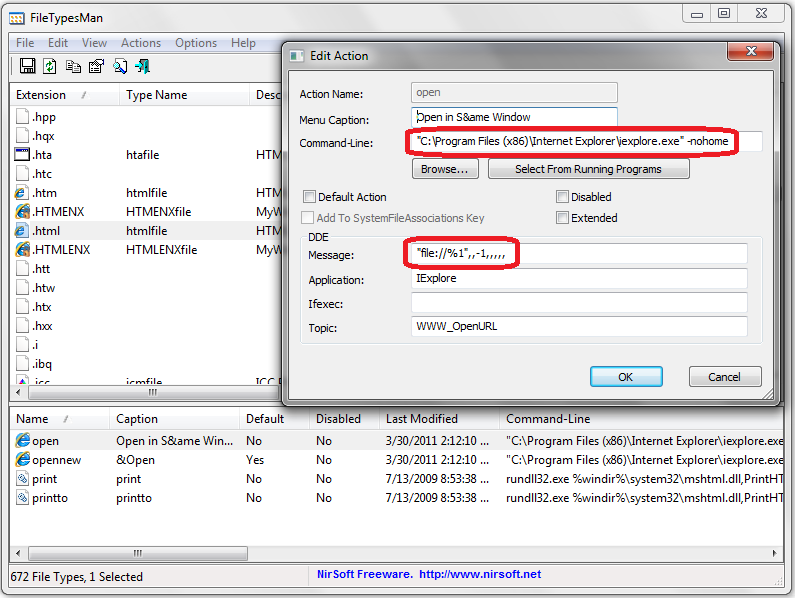
The more you understand basic DOS concepts, the better position you will be in as you manipulate Windows settings. In this example, you can see the command to execute IE with the switch "-nohome" on the command line. You can also see the use of "%1" replaceable parameter in the DDE message section. Is DOS dead? As an operating systems, yes. As a way to manage graphical elements under the hood, no. DOS is dead, long live DOS!
NOTE: Window 7 no longer allows you to see the file type. A program that will allow you to view file associations is FileTypesMan. It is free. See link for downloading.
iexplore.exe -nohome
Using FileTypesMan, you can see in this example for IE the absolute reference to the application and use of several switches. All the user sees is the file icon they need to click on to open their document.
file://%1
Note the use of the "%1" to pass replaceable parameters to the application the file to be opened in the DDE message section. "file://" is the system URI for referencing the local file system.
Thinking: How dependent are GUI objects on command line actions?
Key terms: application, icon, passing paremeters, switch
Resources:
To maximize your learning, please visit these Web sites and review their content
to help reinforce the concepts presented in this section.
Quick links:
FileTypesMan (free) @ cnet.com
Notes on navigation: Click inside the frame to navigate the embedded Web page. - Click outside the frame to navigate this page to scroll up/down between the embedded Web pages. - Click on the frame title to open that page in a new tab in most browsers. - Click on the the "Reload page" link to reload the original page for that frame.
FileTypesMan (free) @ cnet.com |
Reload page
Notes: