
Click on image to enlarge.
Sections:
Updated: 4/16/2012
Learning objective: Explain the role of MS-DOS and the CLI in Windows
Click on image to enlarge.
As you go through this unit, keep in mind that we are not learning MS-DOS but the command line interface of Windows which is *based* on MS-DOS. The commands and concepts of the command line interface (CLI) of Windows are based on the use of MS-DOS commands for backwards compatibility. The more you know about MS-DOS, the better prepared you will be to understand the CLI of Windows.
MS-DOS is many things. It is a text based command line operating system that supports a single-user doing a single task. It was Microsoft's first operating system to support IBM's first PC. It has lots of commands that have evolved over time. DOS is messy and not always consistent in how commands are executed from version to version. It is based on 16-bit architecture designed to run on the Intel 8086 processor chosen by IBM. Despite how dated MS-DOS is, DOS skills are still in use today and key components of Windows 7 and 8!
MS-DOS is an operating system for x86-based personal computers. It was the most commonly used member of the DOS family of operating systems, and was the main operating system for IBM PC compatible personal computers during the 1980s to the mid 1990s, until it was gradually superseded by operating systems offering a graphical user interface (GUI), in particular by various generations of the Microsoft Windows operating system. [Wikipedia]
Based on QDOS and CP/M
MS-DOS was a renamed form of 86-DOS -- informally known as the Quick-and-Dirty Operating System or Q-DOS -- owned by Seattle Computer Products, written by Tim Paterson. Microsoft needed an operating system for the then-new Intel 8086 but it had none available, so it bought 86-DOS for $75,000 and licensed it as its own then released a version of it as MS-DOS 1.0. Development started in 1981, and MS-DOS 1.0 was released with the IBM PC in 1982. (86-DOS, in turn, was a clone of Digital Research's CP/M (for 8080/Z80 processors), ported to run on 8086 processors and with two notable differences compared to CP/M, an improved disk sector buffering logic and the introduction of FAT12 instead of the CP/M filesystem. This became possible because of the increased availability of RAM compared to what was typically available when CP/M was designed originally.) [Wikipedia]
Originally MS-DOS was designed to be an operating system that could run on any 8086-family computer. Each computer would have its own distinct hardware and its own version of MS-DOS, similar to the situation that existed for CP/M, and with MS-DOS emulating the same solution as CP/M to adapt for different hardware platforms. To this end, MS-DOS was designed with a modular structure with internal device drivers, minimally for primary disk drives and the console, integrated with the kernel and loaded by the boot loader, and installable device drivers for other devices loaded and integrated at boot time. The OEM would use a development kit provided by Microsoft to build a version of MS-DOS with their basic I/O drivers and a standard Microsoft kernel, which they would typically supply on disk to end users along with the hardware. Thus, there were many different versions of "MS-DOS" for different hardware, and there is a major distinction between an IBM-compatible (or ISA) machine and an MS-DOS [compatible] machine. Some machines, like the Tandy 2000, were MS-DOS compatible but not IBM-compatible, so they could only run software written exclusively for MS-DOS without dependence on the peripheral hardware of the IBM PC architecture. [Wikipedia]
Versions of MS-DOS
Significant releases of MS-DOS would include: Version 2X which introduced subdirectories, command input/output redirection, and pipes. Microsoft decided to use backslashes as pathname separators rather than slashes as on Unix apparently due to the latter character being used as the switch character in most DOS. Version 3X introduced support for Microsoft networking, support for 3.5 inch, and hard disk partitions of up to 32 megabytes, one primary and one "logical drive" in an "extended partition". Version 5X introduced online help, memory management, full-screen editor, and the QBasic programming language. Version 7X was embedded in Windows 95 and continues as the CLI for all subsequent versions of Windows. It supports logical block addressing and long file names.
Legal issues with system vendors
Prior to 1995, Microsoft licensed MS-DOS (and Windows) to computer manufacturers under three types of agreement: per-processor (a fee for each system the company sold), per-system (a fee for each system of a particular model), or per-copy (a fee for each copy of MS-DOS installed). The largest manufacturers used the per-processor arrangement, which had the lowest fee. This arrangement made it expensive for the large manufacturers to migrate to any other operating system, such as DR DOS. In 1991, the U.S. government Federal Trade Commission began investigating Microsoft's licensing procedures, resulting in a 1994 settlement agreement limiting Microsoft to per-copy licensing. Digital Research did not gain by this settlement, and years later its successor in interest, Caldera, sued Microsoft for damages. It was believed that the settlement ran in the order of $150m, but was revealed in November 2009 with the release of the Settlement Agreement to be $280m. [Wikipedia]
Legacy compatibility
Later versions (Windows 95, Windows 98 and Windows Me) used the DOS boot process to launch itself into protected mode. Basic features related to the file system, such as long file names, were only available to DOS when running as a subsystem of Windows. Windows NT ran independently of DOS but included a DOS subsystem so applications could run in a virtual machine under the new OS. With the latest Windows releases, even dual-booting MS-DOS is problematic as DOS may not be able to read the basic file system. [Wikipedia]
Thinking: Why does Windows 7 support MS-DOS today?
Key terms: CLI, DOS, compatibility
Resources:
To maximize your learning, please visit these Web sites and review their content
to help reinforce the concepts presented in this section.
Quick links:
MS-DOS @ Wikipedia
Notes on navigation: Click inside the frame to navigate the embedded Web page. - Click outside the frame to navigate this page to scroll up/down between the embedded Web pages. - Click on the frame title to open that page in a new tab in most browsers. - Click on the the "Reload page" link to reload the original page for that frame.
MS-DOS @ Wikipedia |
Reload page
Notes:
Learning objective: Demonstrate how to access the CLI in Windows

Click on image to enlarge.
Command Prompt (executable name cmd.exe) is the Microsoft-supplied command-line interpreter on OS/2, Windows CE and on Windows NT-based operating systems (including Windows 2000, XP, Vista, 7, Server 2003 and Server 2008). It is the analog of COMMAND.COM in MS-DOS and Windows 9x (where it is called MS-DOS Prompt) systems, or of the Unix shells used on Unix-like systems. [Wikipedia]
[Start] (/ Run) / enter "cmd"
In Windows a special MS-DOS shell is used to execute DOS commands. To start the DOS shell to access the command line interface, click on the Start button, then click on the Run button if using Windows XP or a higher version, then enter "cmd" in the text box.
EXIT
To exit DOS shell, enter "EXIT" at any DOS prompt.
Thinking: Why does Windows make the CLI difficult to access?
Key terms: EXIT, cmd, prompt, shell
Resources:
To maximize your learning, please visit these Web sites and review their content
to help reinforce the concepts presented in this section.
Quick links:
Command Prompt @ Wikipedia
Notes on navigation: Click inside the frame to navigate the embedded Web page. - Click outside the frame to navigate this page to scroll up/down between the embedded Web pages. - Click on the frame title to open that page in a new tab in most browsers. - Click on the the "Reload page" link to reload the original page for that frame.
Command Prompt @ Wikipedia |
Reload page
Notes:
Learning objective: Explain the purpose of CLI in Windows

Click on image to enlarge.
A command-line interface (CLI) is a mechanism for interacting with a computer operating system or software by typing commands to perform specific tasks. This text-only interface contrasts with the use of a mouse pointer with a graphical user interface (GUI) to click on options, or menus on a text user interface (TUI) to select options. This method of instructing a computer to perform a given task is referred to as "entering" a command: the system waits for the user to conclude the submitting of the text command by pressing the "Enter" key (a descendant of the "carriage return" key of a typewriter keyboard). A command-line interpreter then receives, parses, and executes the requested user command. Upon completion, the command usually returns output to the user in the form of text lines on the CLI. This output may be an answer if the command was a question, or otherwise a summary of the operation. [Wikipedia]
Why a command line interface and not a GUI
Quite often people new to another operating system than Microsoft Windows are confronted with the terms CLI (Command Line Interface) and GUI (Graphical User Interface). Pretty soon they get a notion about what those two are but at this stage they are still far away from being able to tell what is the "better" one. Well, there is no better -- it depends on the tasks that need be done, how experienced a user is and his personal likings. However, this page shows some comparisons what it means to use a CLI (Command Line Interface) or GUI (Graphical User Interface) and the impact that may come by doing so. A computer that is only using the command line takes a lot less of the computers resources. Also, with CLIs there is no need to install a graphical layer at all onto a computer system which saves a lot of resources e.g. storage space. [Gattol]
Command prompt
A command prompt (or just prompt) is a sequence of (one or more) characters used in a command-line interface to indicate readiness to accept commands. Its intent is to literally prompt the user to take action. A prompt usually ends with one of the characters $, %, #, :, > and often includes other information, such as the path of the current working directory. In DOS's COMMAND.COM and in the Windows NT's command-line interpreter cmd.exe the prompt is modifiable by issuing a prompt command or by directly changing the value of the corresponding %PROMPT% environment variable. The default of most modern systems, the C:\> style is obtained, for instance, with "prompt $P$G". The default of older DOS systems, C> is obtained by just "prompt", although on some systems this produces the newer C:\> style, unless used on floppy drives A: or B:; on those systems "prompt $N$G" can be used to override the automatic default and explicitly switch to the older style. [Wikipedia]
DOS lives in the present
With the command line interface, you can only go forward. The events above the prompt are the past and are there for reference. You can not go back with the mouse can click on them like you can in a GUI environment. All you can do is enter a new command when the system prompt is available. In many versions of the DOS CLI, you can press the up arrow on the keyboard and retrieve previous commands at the system prompt to help make using DOS easier.
Commands, commands, commands
There are lots of commands in DOS. Another big difference between DOS and GUI is awareness of commands / actions that are available to the user. In Windows, you can see what options are available to you and all you have to do is click or drag or both. In DOS, if you don't know what you want to do, there are no clues on how to accomplish a given task. The best selling book on DOS is "DOS for Dummies" which is also the first book in the Dummy series. Tens of millions have been sold!
Blank sheet of paper...
Unlike GUI environments that suggest purpose and context, the world of the command line interface is basically void of all meaning. It is more like a blank sheet of paper waiting the thoughts of the author. It is not uncommon for new users to the CLI world to have "writer's block" when trying to figure out what set and sequence of commands need to be used and in what order to accomplish a given task. It is the difference between popping a TV dinner into the microwave and making a dinner from scratch!
Other command line environments
The command line is used by many other OS enabled environments and is the most requested skill from the CIS Advisory Board over the years. "The GUI makes computing easy, the command line makes computing possible." The basic skill of learning the Microsoft command line interface will help prepare you for working with Cisco, Amazon Web Services (AWS), Microsoft Azure, and many other CLI enabled environments. See the links in the Embedded Resources section below for glimpses into their use of a command line to manage system resources.
Thinking: Why use a CLI at all when you have GUI?
Key terms: CLI, GUI, commands, prompt
Resources:
To maximize your learning, please visit these Web sites and review their content
to help reinforce the concepts presented in this section.
Quick links:
GUI vs. Command Line: What's the Difference? @ Difference.Wiki
Command line vs. GUI @ Computer Hope
Command Line Interface @ Wikipedia
Using the Cisco IOS Command-Line Interface @ Cisco
AWS Command Line Interface @ Amazon
Use the Azure CLI to manage Azure resources and resource groups @ Microsoft
Notes on navigation: Click inside the frame to navigate the embedded Web page. - Click outside the frame to navigate this page to scroll up/down between the embedded Web pages. - Click on the frame title to open that page in a new tab in most browsers. - Click on the the "Reload page" link to reload the original page for that frame.
GUI vs. Command Line: What's the Difference? @ Difference.Wiki |
Reload page
Command line vs. GUI @ Computer Hope |
Reload page
Command Line Interface @ Wikipedia |
Reload page
Using the Cisco IOS Command-Line Interface @ Cisco |
Reload page
AWS Command Line Interface @ Amazon |
Reload page
Use the Azure CLI to manage Azure resources and resource groups @ Microsoft |
Reload page
Notes:
Learning objective: Explain how to get help in the MS CLI

Click on image to enlarge.
In computing, help is a command in various command line shells such as COMMAND.COM, cmd.exe, 4DOS/4NT, Windows PowerShell, Bash, Singularity shell, Python and GNU Octave. It provides online information about available commands and the shell environment. Used without parameters, help lists and briefly describes every system command. Windows NT-based versions use MS-DOS 5 style help. [Wikipedia]
Prior to DOS 5X, there was no online help in DOS. If you did not know what command to use, you were out of luck. The online help in DOS is not designed to teach you how to use a command but provide a mental crutch with some many commands and options available. During the hay day of DOS in the 80s, there was a thriving DOS book industry, like the popular "DOS for Dummies" and many others. Amazon lists more than 4,000 titles on MS-DOS.
HELP
At the system prompt, you can enter "HELP" to get a list of available DOS commands. Give it a try.
(command) /?
To view the help for a given application, the default method in DOS is to use the "/?" switch after any command. For example, "TREE /?" to get a list of options for a given command. Give it a try.
(command) | more
If the help contents require more than one screen's worth of information, you can give the "MORE" command with a pipe "|" to control how much is seen. It will pause at a screen's worth of information. By pressing the enter key, it will go down one line at a time. By pressing the space bar, it will go down one screen at a time. Use Ctrl+C to terminate the command. For example, "HELP | MORE" to get a list of options for a given command. Give it a try.
DOS is not case sensitive
DOS is not case sensitive but will normally show commands and other instructions in all caps.
Thinking: How helpful is HELP in DOS?
Key terms: /? switch, Help, | more
Resources:
To maximize your learning, please visit these Web sites and review their content
to help reinforce the concepts presented in this section.
Quick links:
Help Command @ Wikipedia
Notes on navigation: Click inside the frame to navigate the embedded Web page. - Click outside the frame to navigate this page to scroll up/down between the embedded Web pages. - Click on the frame title to open that page in a new tab in most browsers. - Click on the the "Reload page" link to reload the original page for that frame.
Help Command @ Wikipedia |
Reload page
Notes:
Learning objective: Explain the difference between internal and external commands

Click on image to enlarge.
In DOS, there are several types of commands. They are internal and external commands. Internal commands have not varied much since DOS 2X. External ones have. We can see the evolution of commands by their extensions and scope. External commands tend to be more powerful than internal commands but at a cost of being stored on disk.
Internal commands
Internal commands are DOS commands embedded into cmd.exe shell. They are always available to the user and tend to focus on file and folder commands. An example of a internal command would be "CLS" to clear the screen.
External commands
External commands are not located in the shell but are in program files stored on disk. They are a combination of .exe and .com files mostly found in the \windows\system32 folder. An example of a external command would be "MORE.COM" to pause the output of a command. .com files are limited to 64K memory mapping. .exe files are more extensive and can also include header information and icons too. Most executable files today are .exe files. (See links for more detailed information on these file types.)
Succession of commands
When a DOS command is entered at the command prompt, there is a succession of commands if the extension is not given. If you enter a command like "ZZ" (not a real command), the system will see if it is an internal command. If it is not found it will see if there is a "ZZ.COM" file. If not, it will see if there is a "ZZ.EXE". If not it will see if there is a "ZZ.BAT", and if not any of these, an error message will be given. Thus, internal? .com? .exe? .bat? error.
Thinking: Why not make all commands internal commands?
Key terms: external commands, internal commands, succession of commands
Resources:
To maximize your learning, please visit these Web sites and review their content
to help reinforce the concepts presented in this section.
Quick links:
What is difference between internal and external command? @ Answers.com
What’s the difference between the COM and EXE extensions? @ MSD
Difference between .com, .exe, and .bat? @ StackOverflow
COM file @ Wikipedia
Notes on navigation: Click inside the frame to navigate the embedded Web page. - Click outside the frame to navigate this page to scroll up/down between the embedded Web pages. - Click on the frame title to open that page in a new tab in most browsers. - Click on the the "Reload page" link to reload the original page for that frame.
What is difference between internal and external command? @ Answers.com |
Reload page
What’s the difference between the COM and EXE extensions? @ MSD |
Reload page
Difference between .com, .exe, and .bat? @ StackOverflow |
Reload page
COM file @ Wikipedia |
Reload page
Notes:
Learning objective: Explain the use of the CLS command

Click on image to enlarge.
cls (for clear screen) is a command used by the command line interpreters COMMAND.COM and cmd.exe on DOS, OS/2 and Microsoft Windows operating systems to clear the screen or console window of commands and any output generated by them. It does not clear the user's history of commands, however. In other environments, such as Linux and Unix, the same functionality is provided by the "clear" command. [Wikipedia]
CLS /?
In this example, you can see that "CLS" or clear screen has no objects or options as part of its syntax. It is just "CLS". To clear the screen, enter "CLS". Try it!
Thinking: Why have a CLS commands anyway?
Key terms: CLS
Resources:
To maximize your learning, please visit these Web sites and review their content
to help reinforce the concepts presented in this section.
Quick links:
CLS Command @ Wikipedia
Notes on navigation: Click inside the frame to navigate the embedded Web page. - Click outside the frame to navigate this page to scroll up/down between the embedded Web pages. - Click on the frame title to open that page in a new tab in most browsers. - Click on the the "Reload page" link to reload the original page for that frame.
CLS Command @ Wikipedia |
Reload page
Notes:
Learning objective: Explain the use of the DIR command

Click on image to enlarge.
In computing, dir (directory) is a command used for file and directory listing, specifically in the command line interface (CLI) of the RT-11, CP/M, VMS, DOS, OS/2, Singularity and Microsoft Windows operating systems. It is analogous to the Unix ls command. Because it is the primary means of displaying the files and directories on disk or other storage medium within a command window, the dir command is one of the most basic commands employed by users of the command line interface to MS-DOS and various versions of Windows. The dir command has existed as a DOS command since the initial release of MS-DOS. It is built into the DOS command shell, and is not provided as a separate standalone program. [Wikipedia]
DIR
If you enter "DIR" without any other arguments, you will get a listing of files and folders of your current working directory. Try it!
DIR [drive:][path]
The "DIR" can be directed to another drive and/or path by providing them when executing the command. (In the next unit we will cover the DIR command in more detail.)
DIR C:\
In this example, a listing of the files and folder will be displayed for the root "\" of the "C:" drive. Try it!
Other examples:
DIR c:\windows
DIR c:\windows\system32
Thinking: Why not have a DIR command for the entire drive?
Key terms: DIR, directory, files, path
Resources:
To maximize your learning, please visit these Web sites and review their content
to help reinforce the concepts presented in this section.
Quick links:
DIR Command @ Wikipedia
Notes on navigation: Click inside the frame to navigate the embedded Web page. - Click outside the frame to navigate this page to scroll up/down between the embedded Web pages. - Click on the frame title to open that page in a new tab in most browsers. - Click on the the "Reload page" link to reload the original page for that frame.
DIR Command @ Wikipedia |
Reload page
Notes:
Learning objective: Explain the use of the CD command
Click on image to enlarge.
DOS maintains separate working directories for each lettered drive, and also has the concept of a current working drive. The cd command can be used to change the working directory of the working drive or another lettered drive. Typing the drive letter as a command on its own changes the working drive, e.g. C:; alternatively, cd with the /d switch may be used to change the working drive and that drive's working directory in one step. Modern versions of Windows simulate this behavior for backwards compatibility under cmd.exe. [Wikipedia]
Note that executing cd from the command line with no arguments has different effects in different operating systems. For example, if cd is executed without arguments in DOS, OS/2, or Windows, the current working directory is displayed. If cd is executed without arguments in Unix, the user is returned to the home directory. [Wikipedia]
CD path
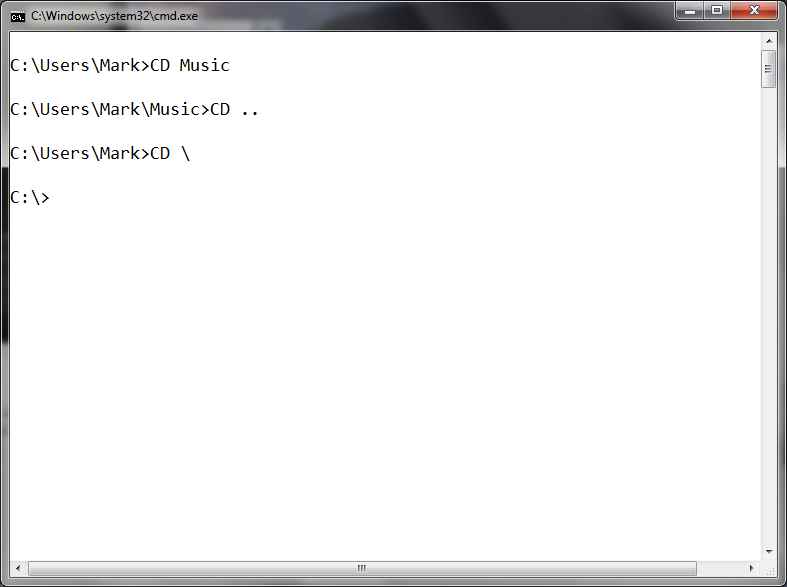
The "CD path" command will change from the current working directory to a directory below it assuming there is a directory by that name. You can transverse several directories at one time if you know the correct set of paths sometimes referred to as the "legal path". For example, if you were at the root of the C: drive a command of "CD windows\system32" would then make the system32 folder the default working folder.
CD .. (parent)
The "CD .." command will change from the current working directory to a directory above it assuming there is a directory. If the you are in the root directory, the system will keep you at the root.
CD \ (root)
The "CD \" command will change from the current working directory to the root directory no matter what your location is currently on the tree.
Other examples:
CD \windows (move to the windows directory - absolute)
CD \ (move to the root since starts with \ - absolute)
CD \windows\system32 (move to the system32 directory - absolute)
CD ..\.. (move to the root from the previous step - relative)
Thinking: Why be able to move to the root in one command?
Key terms: CD, parent, path, root, working directory
Resources:
To maximize your learning, please visit these Web sites and review their content
to help reinforce the concepts presented in this section.
Quick links:
CD Command @ Wikipedia
Notes on navigation: Click inside the frame to navigate the embedded Web page. - Click outside the frame to navigate this page to scroll up/down between the embedded Web pages. - Click on the frame title to open that page in a new tab in most browsers. - Click on the the "Reload page" link to reload the original page for that frame.
CD Command @ Wikipedia |
Reload page
Notes: