
Click on image to enlarge.
Sections:
Updated: 3/26/12
Learning objective: Explain the purpose of an operating system
Click on image to enlarge.
The operating system does everything and does nothing. Unlike an application, like a word processor, the operating system is very unfocused with regards as what to do with it. Applications have boundaries and a sense of purpose. Operating system seem to have limitless boundaries and little sense of immediate purpose. Since the operating system does so much to make a computer function, it can be hard at times to find a place to start to understand what it is and what it does. For many users their main experience with their operating system is file management and a sense that the mouse is being controlled by the operating system.
An operating system is the software on a computer that manages the way different programs use its hardware, and regulates the ways that a user controls the computer. Operating systems are found on almost any device that contains a computer with multiple programs -- from cellular phones and video game consoles to supercomputers and web servers. Some popular modern operating systems for personal computers include Microsoft Windows, Mac OS X, and Linux. [Wikipedia]
An operating system has several capabilities that it must provide:
Hardware
The term hardware covers all of those parts of a computer that are tangible objects. Circuits, displays, power supplies, cables, keyboards, printers and mice are all hardware. [Wikipedia]
Kernel
In computing, the kernel is the central component of most computer operating systems; it is a bridge between applications and the actual data processing done at the hardware level. The kernel's responsibilities include managing the system's resources (the communication between hardware and software components). Usually as a basic component of an operating system, a kernel can provide the lowest-level abstraction layer for the resources (especially processors and I/O devices) that application software must control to perform its function. It typically makes these facilities available to application processes through inter-process communication mechanisms and system calls. [Wikipedia] The two main kernels today are Microsoft NT and Linux/BSD.
Shell
A shell is a piece of software that provides an interface for users of an operating system which provides access to the services of a kernel. However, the term is also applied very loosely to applications and may include any software that is "built around" a particular component, such as web browsers and email clients that are "shells" for HTML rendering engines. The name shell originates from shells being an outer layer of interface between the user and the internals of the operating system (the kernel). Operating system shells generally fall into one of two categories: command-line and graphical. Command-line shells provide a command-line interface (CLI) to the operating system, while graphical shells provide a graphical user interface (GUI). In either category the primary purpose of the shell is to invoke or "launch" another program; however, shells frequently have additional capabilities such as viewing the contents of directories. [Wikipedia]
Application
Application software, also known as an application, is computer software designed to help the user to perform singular or multiple related specific tasks. Examples include enterprise software, accounting software, office suites, graphics software, and media players. Application software is contrasted with system software and middleware, which manage and integrate a computer's capabilities, but typically do not directly apply them in the performance of tasks that benefit the user. A simple, if imperfect analogy in the world of hardware would be the relationship of an electric light bulb (an application) to an electric power generation plant (a system). The power plant merely generates electricity, not itself of any real use until harnessed to an application like the electric light that performs a service that benefits the user. [Wikipedia]
Thinking: Why not have the application control the hardware directly?
Key terms: application, kernel, operating system, shell
Resources:
To maximize your learning, please visit these Web sites and review their content
to help reinforce the concepts presented in this section.
Quick links:
Operating system @ Wikipedia
Computer system @ Wikipedia
Kernel @ Wikipedia
Shell @ Wikipedia
Application software @ Wikipedia
Notes on navigation: Click inside the frame to navigate the embedded Web page. - Click outside the frame to navigate this page to scroll up/down between the embedded Web pages. - Click on the frame title to open that page in a new tab in most browsers. - Click on the the "Reload page" link to reload the original page for that frame.
Operating system @ Wikipedia |
Reload page
Computer system @ Wikipedia |
Reload page
Kernel @ Wikipedia |
Reload page
Shell @ Wikipedia |
Reload page
Application software @ Wikipedia |
Reload page
Notes:
Learning objective: Explain the purpose of an operating system

Click on image to enlarge.
This is another view of an operating system that shows the non-uniformity of the hardware environment. Computers tend to use different pieces of hardware, like different audio and video cards. The role of the operating system is to provide a uniform platform for developers to create applications. These applications access key resources from the operating system through application program interfaces (APIs). The APIs relieve the developer from common tasks, such as opening a file, so they can focus on the goals of their application and not have to understand *how* to open a file on a specific system. If the user wants to add additional hardware to their system, like a video card, the device will need driver software to "extend" the operating system so the OS will know how to use it. The driver application provides a means to control the behavior of the device like how fast the mouse responds to movement or what screen resolution is needed. Many driver applications in Windows can be found in the system Control Panel. Much of the bloat of modern OSs is due to having many device drivers on the local system just in case they are needed and access to the Internet is not available. This helps to minimizing user frustration over getting a new device to work since the driver may already be available on in current OS environment.
Application Programming Interface (API)
An application programming interface (API) is an interface implemented by a software program that enables it to interact with other software. It facilitates interaction between different software programs similar to the way the user interface facilitates interaction between humans and computers. An API is implemented by applications, libraries, and operating systems to determine their vocabularies and calling conventions, and is used to access their services. It may include specifications for routines, data structures, object classes, and protocols used to communicate between the consumer and the implementer of the API [Wikipedia]
Device driver
In computing, a device driver or software driver is a computer program allowing higher-level computer programs to interact with a hardware device. A driver typically communicates with the device through the computer bus or communications subsystem to which the hardware connects. When a calling program invokes a routine in the driver, the driver issues commands to the device. Once the device sends data back to the driver, the driver may invoke routines in the original calling program. Drivers are hardware-dependent and operating-system-specific. They usually provide the interrupt handling required for any necessary asynchronous time-dependent hardware interface. Some common devices that require a driver are: printers, video adapters, network cards, sound cards, storage devices such as hard disk, image scanners, digital cameras, and similar devices. [Wikipedia]
Thinking: Which is better, lots of a APIs or fewer?
Key terms: API, card, driver
Resources:
To maximize your learning, please visit these Web sites and review their content
to help reinforce the concepts presented in this section.
Quick links:
API @ Wikipedia
Device driver @ Wikipedia
Notes on navigation: Click inside the frame to navigate the embedded Web page. - Click outside the frame to navigate this page to scroll up/down between the embedded Web pages. - Click on the frame title to open that page in a new tab in most browsers. - Click on the the "Reload page" link to reload the original page for that frame.
Device driver @ Wikipedia |
Reload page
Notes:
Learning objective: Identify classifications of operating systems

Click on image to enlarge.
Operating system are usually broken down into four basic classifications. The four main types of operating system are listed below.
Single-user, single-task operating systems
A single-user, single-task operating system, like MS-DOS, with basic kernel functions that are non-reentrant: only one program at a time can use them. There is an exception with Terminate and Stay Resident (TSR) programs, and some TSRs can allow multitasking. However, there is still a problem with the non-reentrant kernel: once a process calls a service inside of operating system kernel (system call), it must not be interrupted with another process calling system call, until the first call is finished. [Wikipedia]
Single-user, multi-task operating systems
On basis of number of tasks the computer can handle at a time the operating systems can be classified into single-task or multi-tasking (also referred to as multi-programming) operating system. A single-task the name implies, this operating system is designed to manage the computer so that one user can effectively do one thing at a time. Multi-tasking operating systems are most commonly used by people on their desktop and laptop computers today. Microsoft's Windows and Apple's Mac OS platforms are both examples of operating systems that will let a single user have several programs in operation at the same time. For example, it's entirely possible for a Windows user to be writing a note in a word processor while downloading a file from the Internet while printing the text of an e-mail message. This is made possible either by using multiple CPUs or timesharing or a mix of both. [Wikipedia]
Multi-user systems
Multi-user is a term that defines an operating system or application software that allows concurrent access by multiple users of a computer. Time-sharing systems are multi-user systems. Most batch processing systems for mainframe computers may also be considered "multi-user", to avoid leaving the CPU idle while it waits for I/O operations to complete. However, the term "multitasking" is more common in this context. An example is a Unix server where multiple remote users have access (such as via Secure Shell) to the Unix shell prompt at the same time. Another example uses multiple X Window sessions spread across multiple terminals powered by a single machine - this is an example of the use of thin client. [Wikipedia]
Real-time operating systems
A real-time operating system (RTOS) is an operating system (OS) intended for real-time applications. Such operating systems serve application requests nearly real-time. A real-time operating system offers programmers more control over process priorities. An application's process priority level may exceed that of a system process. Real-time operating systems minimize critical sections of system code, so that the application's interruption is nearly critical. A real-time OS has an advanced algorithm for scheduling. Scheduler flexibility enables a wider, computer-system orchestration of process priorities, but a real-time OS is more frequently dedicated to a narrow set of applications. Key factors in a real-time OS are minimal interrupt latency and minimal thread switching latency, but a real-time OS is valued more for how quickly or how predictably it can respond than for the amount of work it can perform in a given period of time. [Wikipedia]
Thinking: What type of OS do you want for your PC? or your car's breaks?
Key terms: Multi-user systems, Real-time operating systems, Single-user, multi-task operating systems, Single-user, single-task operating systems
Resources:
To maximize your learning, please visit these Web sites and review their content
to help reinforce the concepts presented in this section.
Quick links:
DOS @ Wikipedia
Classification of operating systems @ ICTExams
Multi-user @ Wikipedia
Real-time_operating_system @ Wikipedia
Notes on navigation: Click inside the frame to navigate the embedded Web page. - Click outside the frame to navigate this page to scroll up/down between the embedded Web pages. - Click on the frame title to open that page in a new tab in most browsers. - Click on the the "Reload page" link to reload the original page for that frame.
Classification of operating systems @ ICTExams |
Reload page
Multi-user @ Wikipedia |
Reload page
Real-time_operating_system @ Wikipedia |
Reload page
Notes:
Learning objective: Identify uses of Operating Systems

Click on image to enlarge.
Adding a microprocessor to most devices significantly increases the device's capability. Thus, each device needs an operating system to control the device. What other devices do you use that may use an OS that can be added to the list below?
Network routers
Printers
DVD players
Toothbrushes
Cell phones
Thinking: Can you think of non-computing like devices that may have OSs?
Key terms:
Resources:
To maximize your learning, please visit these Web sites and review their content
to help reinforce the concepts presented in this section.
Quick links:
Operating systems comparison @ Wikipedia
Notes on navigation: Click inside the frame to navigate the embedded Web page. - Click outside the frame to navigate this page to scroll up/down between the embedded Web pages. - Click on the frame title to open that page in a new tab in most browsers. - Click on the the "Reload page" link to reload the original page for that frame.
Operating systems comparison @ Wikipedia |
Reload page
Notes:
Learning objective: Explain the organization of hierarchical filing systems
Click on image to enlarge.
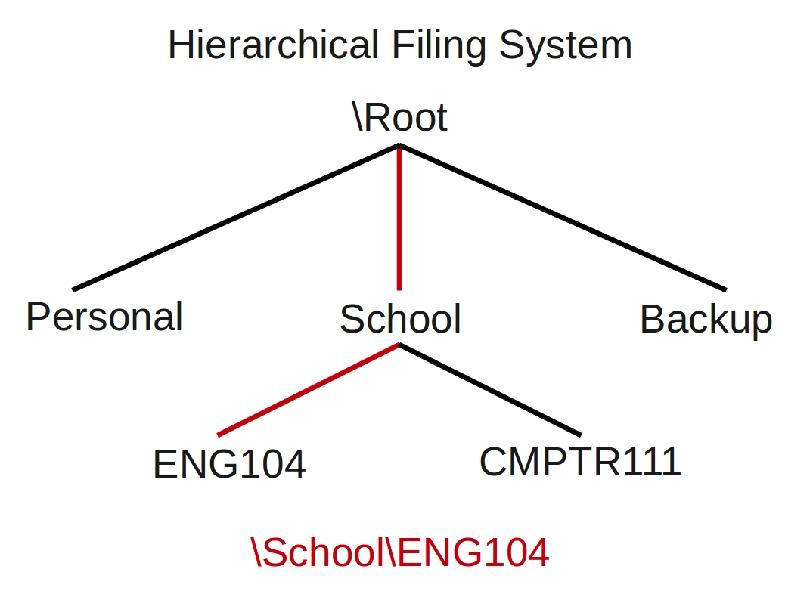
For users, one of the main functions of the operating system they deal with directly on an ongoing basis is managing their files. For many users, this is one of the most confusing areas of using a computer. Part of this confusion comes from the sheer number of folders and files found on a modern computer. Another is the use of a hierarchical filing systems which represents an upside down branch system of a tree. It has a singular top, called the root, and many branches going down, but with only one way back to the root. You can think of each singular branch as a folder and the leaves as files. This is such an issue for many users that vendors, like Microsoft, now suggest to developers that they use a default directory called "My Documents" or similar schemes so users do not need to worry as much about "managing" their files.
In this hierarchical directory example, the path to get to the ENG104 directory would require that you start at the root, and then go down to the School directory to get to the ENG104 directory. This is called the path. Each directory in the path is separated by a slash. The first slash represent the root as the starting place. So, if a path starts with a slash, it is referencing the root directory. Unix and Linux use a forward slash and Microsoft uses a back slash for path representations. The example path would be referenced as: \School\ENG104. The root is represented as the first "\" backslash. All other backslashes are used as path separators.
Thinking: Why not have multiple paths up as well as down?
Key terms: My Documents, directory, hierarchical filing systems, path, root
Resources:
To maximize your learning, please visit these Web sites and review their content
to help reinforce the concepts presented in this section.
Quick links:
Root directory @ Wikipedia
Hierarchical system @ Wikipedia
My Documents @ Wikipedia
Notes on navigation: Click inside the frame to navigate the embedded Web page. - Click outside the frame to navigate this page to scroll up/down between the embedded Web pages. - Click on the frame title to open that page in a new tab in most browsers. - Click on the the "Reload page" link to reload the original page for that frame.
Root directory @ Wikipedia |
Reload page
Hierarchical system @ Wikipedia |
Reload page
My Documents @ Wikipedia |
Reload page
Notes:
Learning objective: Explain the use of absolute paths
Click on image to enlarge.
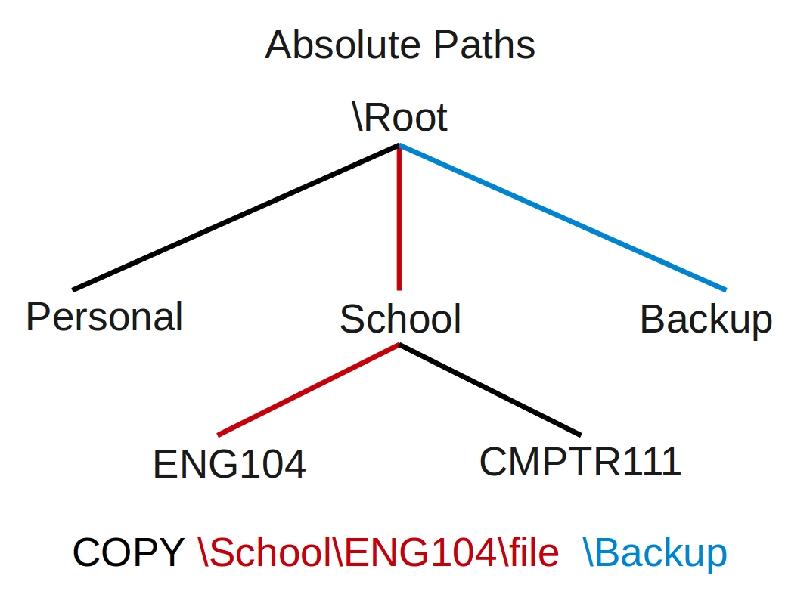
To copy a file using only absolute references, you would include the path from the root to the source or target destination. It is up to the user to know the full source and destination paths when executing this command. In this example, if we wanted to copy a file, like termpaper.doc, from ENG104 directory to the Backup directory, the command would be:
COPY \School\ENG104\termpaper.doc [space] \Backup
Other examples:
To copy a file from the Personal directory to the School directory:
COPY \Personal\file.txt [space] \School
To copy a file from the ENG104 directory to the CMPTR111 directory:
COPY \School\ENG104\file.txt [space] \School\CMPTR111
To copy a file from the ENG104 directory to the root "\":
COPY \School\ENG104\file.txt [space] \
Thinking: If all paths start at the root with absolute path referencing, what are the benefits?
Key terms: absolute path, directory, file, path, root
Resources:
To maximize your learning, please visit these Web sites and review their content
to help reinforce the concepts presented in this section.
Quick links:
Absolute path @ Wikipedia
Notes on navigation: Click inside the frame to navigate the embedded Web page. - Click outside the frame to navigate this page to scroll up/down between the embedded Web pages. - Click on the frame title to open that page in a new tab in most browsers. - Click on the the "Reload page" link to reload the original page for that frame.
Absolute path @ Wikipedia |
Reload page
Notes:
Learning objective: Explain the use of relative paths

Click on image to enlarge.
To copy a file using only relative references, imagine starting from ENG104 as the current or working directory and providing the path from this location to the target destination. It is up to the user to know the full source and destination paths when executing this command. In this example, if we wanted to copy a file from ENG104 directory to the Backup directory, the command would be: COPY file dot-dot\dot-dot\Backup. This assumes that we are currently in the ENG104 directory. The dot dot would move you up one directory. (Remember, there is only one way to go up the tree. If enough dot-dots are given, you will return to the root directory.) When the path gets to the root or pivot point, the full path is given to identify the downward direction to the destination. When paths are identified, the system will follow them down to that location.
COPY file [space] ..\..\Backup
Other examples:
To copy a file from the Personal directory (as the working directory) to the School directory:
COPY file.txt [space] ..\School
To copy a file from the ENG104 directory (as the working directory) to the CMPTR111 directory:
COPY file.txt [space] ..\CMPTR111
To copy a file from the ENG104 directory (as the working directory)to the root:
COPY file.txt [space] ..\..
Thinking: If all paths start at the working directory as the reference, what are the benefits?
Key terms: directory, file, path, relative path, root
Resources:
To maximize your learning, please visit these Web sites and review their content
to help reinforce the concepts presented in this section.
Quick links:
Relative path @ Wikipedia
Notes on navigation: Click inside the frame to navigate the embedded Web page. - Click outside the frame to navigate this page to scroll up/down between the embedded Web pages. - Click on the frame title to open that page in a new tab in most browsers. - Click on the the "Reload page" link to reload the original page for that frame.
Relative path @ Wikipedia |
Reload page
Notes:
Learning objective: Explain the use of absolute and relative paths

Click on image to enlarge.
To copy a file using both relative and absolute references, again imagine starting from ENG104 which would be the current or working directory, and providing the path from this location to the target destination. It is up to the user to know the full source and destination paths when executing this command. In this example, if we wanted to copy a file from ENG104 directory to the Backup directory, the command would be: COPY file \Backup. This assumes that we are currently in the ENG104 directory. The \ references the root. The full path is given to identify the downward direction to the destination. When paths are identified, the system will follow them down to that location.
COPY file [space] \Backup
Other examples:
To copy a file from the Personal directory (as the working directory) to the School directory:
COPY file.txt [space] \School
To copy a file from the School directory (as the working directory) to the CMPTR111 directory:
COPY ENG104\file.txt [space] \School\CMPTR111
To copy a file from the ENG104 directory (as the working directory) to the root "\":
COPY file.txt [space] \
Thinking: What are the benefits and problems with using a mix of relative and absolute paths?
Key terms: absolute path, directory, file, path, relative path, root
Notes:
Learning objective: Explain the logical/physical representations of files
Click on image to enlarge.
When a user makes a request to save a file, several key events happen that need to be managed by the operating system. The scenario below is Microsoft centered, but it is similar to how other operating systems manage a file.
Saving a document
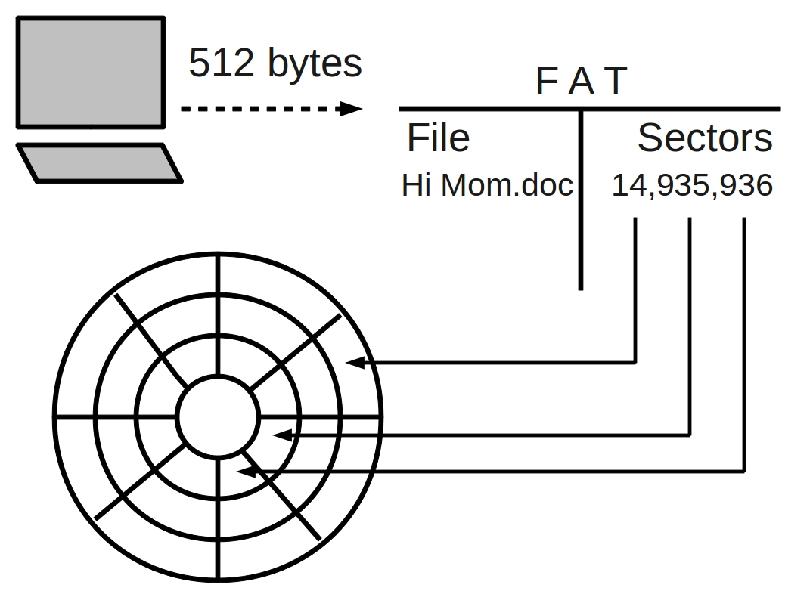
When a user wishes to save a file, the data in the computers memory is streamed out to the File Allocation Table. As it move towards the FAT, the data is broken up into chunks of 512 bytes. Most documents will be made up of many 512 byte chunks. 512 is used because it is a binary derivative, and computers utilize binary communications.
File allocation table
The File Allocation Table translate the logical filename of the user into the physical representation of the file into sectors available on a storage device. In FAT32 and NTFS system, the FAT includes both the long name of 255 characters that we take for granted today as well as the short file name using the older 8.3 conventions to maintain backwards compatibility. In this example, the file "Hi mom.doc" is mapped to sectors 14, 935, and 936 based on available sectors and position of the read/write head at the time of request. The short name would be "HIMOM~1.DOC" if that name was not already taken in the target directory.
Mapping data to available sectors
When a storage device is formatted, two main things occur. First the device is broken into sequential storage bins called sectors. The normal storage capacity of a sector is 512 bytes, but the sector size can be adjusted. The other main event is the creation of the File Allocation Table which translate the logical filename to the mapping of the unused sectors. When a drive is made available to the operating system, or mounted, the FAT is loaded into memory for the OS to manage. When you want to remove a device it needs to be unmounted so the OS will know to not use the device anymore and to write the current state of the FAT back to the drive. Thus, when the drive is accessed again, the FAT will reflect the current state of the mapping of the sectors to the logical filenames for its next mounting so they can be accessed by the user.
Thinking: What might happen if the FAT is not updated when unmounted?
Key terms: FAT, application, file, long filename, sector, short filename, storage device
Resources:
To maximize your learning, please visit these Web sites and review their content
to help reinforce the concepts presented in this section.
Quick links:
File allocation table @ Wikipedia
Cylinder head sector @ Wikipedia
Long filename @ Wikipedia
Short filename @ Wikipedia
Comparison of file systems @ Wikipedia
Notes on navigation: Click inside the frame to navigate the embedded Web page. - Click outside the frame to navigate this page to scroll up/down between the embedded Web pages. - Click on the frame title to open that page in a new tab in most browsers. - Click on the the "Reload page" link to reload the original page for that frame.
File allocation table @ Wikipedia |
Reload page
Cylinder head sector @ Wikipedia |
Reload page
Long filename @ Wikipedia |
Reload page
Short filename @ Wikipedia |
Reload page
Comparison of file systems @ Wikipedia |
Reload page
Notes:
Learning objective: Explain what a short 8.3 filename is

Click on image to enlarge.
Long filenames (LFN), are Microsoft's way of implementing filenames longer than the 8.3 filename, or short-filename, naming scheme used in Microsoft DOS in their modern FAT and NTFS filesystems. Because these filenames can be longer than an 8.3 filename, they can be more descriptive. Another advantage of this scheme is that it allows for longer extensions common on other operating systems (e.g. .jpeg, .tiff, .html, and .xhtml) rather than specialized shortened names (e.g. .jpg, .tif, .htm, .xht). The first Microsoft Windows operating system to implement long filenames on FAT was Windows NT 3.5 in 1994. The long filename system allows a maximum length of 255 UTF-16 characters, including spaces and non-alphanumeric characters (excluding the following characters, which have special meaning within the command interpreter or the operating system kernel: \ / : * ? " < > |). This is achieved by chaining up to 20 directory entries of 13 2-byte unicode characters each. To maintain compatibility with older operating systems, Microsoft formulated a method of generating an 8.3 filename from the long filename (for example, "Microsoft.txt" to "MICROS~1.TXT") and associating it with the file. [Wikipedia]
An 8.3 filename (also called a short filename or SFN) is a filename convention used by old versions of DOS, versions of Microsoft Windows prior to Windows 95, and Windows NT 3.51. It is also used in modern Microsoft operating systems as an alternate filename to the long filename for compatibility with legacy programs. The filename convention is limited by the FAT file system. Similar 8.3 file naming schemes have also existed on earlier CP/M, Atari, and some Data General and Digital Equipment Corporation minicomputer operating systems. [Wikipedia]
This legacy technology is used in a wide range of products and devices, as a standard for interchanging information, such as compact flash cards used in cameras. VFAT LFN Long filenames introduced by Windows 95/98/ME retained compatibility. But the VFAT LFN used on NT-based systems (Windows NT/2K/XP) uses a modified 8.3 shortname. If a filename contains only lowercase letters, or is a combination of a lowercase basename with an uppercase extension, or vice-versa; and has no special characters, and fits within the 8.3 limits, a VFAT entry is not created on Windows NT and later versions such as XP. Instead, two bits in byte 0x0c of the directory entry are used to indicate that the filename should be considered as entirely or partially lowercase. Specifically, bit 4 means lowercase extension and bit 3 lowercase basename, which allows for combinations such as "example.TXT" or "HELLO.txt" but not "Mixed.txt". Few other operating systems support this. This creates a backwards-compatibility problem with older Windows versions (95, 98, ME) that see all-uppercase filenames if this extension has been used, and therefore can change the name of a file when it is transported, such as on a USB flash drive. Current 2.6.x versions of Linux will recognize this extension when reading (source: kernel 2.6.18 /fs/fat/dir.c and fs/vfat/namei.c); the mount option shortname determines whether this feature is used when writing. [Wikipedia]
Use dir /x to view short filenames
To find out for sure the SFN or 8.3 names of the files in a directory use: "dir /x" shows the short names if there is one, and the long names or : "dir /-n" shows only the short names, in the original DIR listing format. [Wikipedia]
Converting long to short filenames
Windows supports long file names up to 255 characters in length. Windows also generates an MS-DOS-compatible (short) file name in 8.3 format to allow MS-DOS-based or 16-bit Windows-based programs to access the files. [Microsoft]
Step 1: Remove invalid characters
Windows deletes any invalid characters and spaces from the file name. Invalid characters include: . " / \ [ ] : ; = ,
Step 2: Remove additional periods
Because short file names can contain only one period (.), Windows removes additional periods from the file name if valid, non-space characters follow the final period in the file name. For example, Windows generates the short file name Thisis~1.txt from the long file name This is a really long filename.123.456.789.txt Otherwise, Windows ignores the final period and uses the next to the last period. For example, Windows generates the short file name Thisis~1.789 from the long file name This is a really long filename.123.456.789.
Step 3: Truncates the file name, start with six characters and appends a tilde (~)
To make the short filename, Windows truncates the file name, if necessary, to six characters and appends a tilde (~) and a digit. For example, each unique file name created ends with "~1." Duplicate file names end with "~2," "~3," and so on.
Step 4: Truncates the file name extension
Windows truncates the file name extension, like .doc or .txt, to three characters or less.
Step 5: Convert to uppercase
Windows translates all characters in the file name and extension to uppercase.
Example: Alongf~1.txt from "A long filename.txt"
The short file name "Alongf~1.txt" is generated from the long file name "A long filename.txt" because the long file name contains more than eight characters.
Note that if a folder or file name contains a space, but less than eight characters, Windows still creates a short file name. This behavior may cause problems if you attempt to access such a file or folder over a network. To work around this situation, substitute a valid character, such as an underscore (_), for the space. If you do so, Windows does not create a different short file name. [Microsoft]
No short file name is generated from "A_file.doc" because the file name contains less than eight characters and does not contain a space. [Microsoft]
Thinking: Why does Microsoft use short filenames in their OS and why does it support backwards compatibility?
Key terms: FAT, long filename, short filename
Resources:
To maximize your learning, please visit these Web sites and review their content
to help reinforce the concepts presented in this section.
Quick links:
Short filename @ Wikipedia
Long filename @ Wikipedia
Notes on navigation: Click inside the frame to navigate the embedded Web page. - Click outside the frame to navigate this page to scroll up/down between the embedded Web pages. - Click on the frame title to open that page in a new tab in most browsers. - Click on the the "Reload page" link to reload the original page for that frame.
Short filename @ Wikipedia |
Reload page
Long filename @ Wikipedia |
Reload page
Notes:
Learning objective: Explain the difference between ASCII and binary files

Click on image to enlarge.
From the operating system's perspective, a file is either an ASCII file or a binary file. The default process of the operating system is to convert 1s and 0s through the ASCII table. If the file *is* an ASCII file, the user will be able to view the contents of the file or interaction with the computer as a "normal" text event. If the the file is something other than an ASCII file, like a picture which uses another bit pattern that is not ASCII, another application will be needed to view or modify the file, like Microsoft Paint, to properly process the unique set of 1s and 0s that make up a document like a picture.
For example, as binary set of 1000011110000111000101110011 could represent the word "Cabs" in ASCII *or* the value of 142,111,091 *or* a pixel in an image. It all depends on how the 1s and 0s get processed.
ASCII files
The American Standard Code for Information Interchange is a character-encoding scheme based on the ordering of the English alphabet. ASCII codes represent text in computers, communications equipment, and other devices that use text. Most modern character-encoding schemes are based on ASCII, though they support many more characters than did ASCII. When opened by a text editor, human-readable content is presented to the user. This often consists of the file's plain text visible to the user. Depending on the application, control codes may be rendered either as literal instructions acted upon by the editor, or as visible escape characters that can be edited as plain text. Though there may be plain text in a text file, control characters within the file (especially the end-of-file character) can render the plain text unseen by a particular method.
The purpose of using plain text today is primarily a "lowest common denominator" independence from programs that require their very own special encoding or formatting (with due sacrifices and limitations). Plain text files can be opened, read, and edited with most text editors. Examples include Notepad (Windows), edit (DOS), ed, emacs, vi, vim, Gedit or nano (Unix, Linux), SimpleText (Mac OS), or TextEdit (Mac OS X). Other computer programs are also capable of reading and importing plain text. It can also be used by simple computer tools such as line printing text commands like type (DOS and Windows) and cat (Unix). Plain text files are almost universal in programming; a source code file containing instructions in a programming language is almost always a plain text file. Plain text is also commonly used for configuration files, which are read for saved settings at the startup of a program.
Binary files
A binary file is a computer file which may contain any type of data, encoded in binary form for computer storage and processing purposes; for example, computer document files containing formatted text. Many binary file formats contain parts that can be interpreted as text; binary files that contain only textual data—without, for example, any formatting information—are called plain text files. In many cases, plain text files are considered to be different from binary files because binary files are made up of more than just plain text. When downloading, a completely functional program without any installer is also often called program binary, or binaries (as opposed to the source code).
Binary files are usually thought of as being a sequence of bytes which means the binary digits (bits) are grouped in eights. Binary files typically contain bytes that are intended to be interpreted as something other than text characters. Compiled computer programs are typical examples; indeed, compiled applications (object files) are sometimes referred to, particularly by programmers, as binaries. But binary files can also contain images, sounds, compressed versions of other files, etc. -- in short, any type of file content whatsoever. To view a binary, an application will be required to process it into something users can use if it is not ASCII.
The Rosetta Stone effect
The Rosetta Stone is a fragment of an Ancient Egyptian granodiorite stele, the engraved text of which provided the key to the modern understanding of Egyptian hieroglyphs. The inscription records a decree that was issued at Memphis in 196 BC on behalf of King Ptolemy V. The decree appears in three texts: the upper one is in ancient Egyptian hieroglyphs, the middle one in Egyptian demotic script, and the lower text in ancient Greek. Before the discovery of the Rosetta Stone, scholars had been trying to decrypt the the hieroglyphs for centuries. Since the other two languages on the stone were well understood, it was possible to understand the secrets of hieroglyphs. Within 20 years of the discovery of the stone, scholars could now study hieroglyphs and could walk into any Ancient Egyptian temple or tomb and read the writings on the walls nearly effortlessly. The ASCII table acts the same way. It translates the binary data into recognized characters that we humans can use. The default process of the command line interface for most operating systems is to attempt to filter binary data through the ASCII table. If the file is an ASCII or plain text file, users can easily view the data at the console or in a text editor like Notepad. If the data is *not* ASCII data, another process will be needed to make the data usable. For example, a series of 1s and 0s will be converted into pixels that makeup a portion of an image based on the sequence that is needed for that pixel, like 24 bits instead of 8 for ASCII.
Thinking: Why not make all data ASCII?
Key terms: ASCII, binary, plain text
Resources:
To maximize your learning, please visit these Web sites and review their content
to help reinforce the concepts presented in this section.
Quick links:
ASCII @ Wikipedia
Text file @ Wikipedia
Plain text @ Wikipedia
Binary file @ Wikipedia
Rosetta Stone @ Wikipedia
Notes on navigation: Click inside the frame to navigate the embedded Web page. - Click outside the frame to navigate this page to scroll up/down between the embedded Web pages. - Click on the frame title to open that page in a new tab in most browsers. - Click on the the "Reload page" link to reload the original page for that frame.
ASCII @ Wikipedia |
Reload page
Text file @ Wikipedia |
Reload page
Plain text @ Wikipedia |
Reload page
Binary file @ Wikipedia |
Reload page
Rosetta Stone @ Wikipedia |
Reload page
Notes: