Click on image to enlarge.
Sections: 1 | 2 | 3 | 4 | 5 | 6 | 7 | 8 | Index | Next >
Learning objective: Explain the use of the CD command
Click on image to enlarge.
DOS maintains separate working directories for each lettered drive, and also has the concept of a current working drive. The cd command can be used to change the working directory of the working drive or another lettered drive. Typing the drive letter as a command on its own changes the working drive, e.g. C:; alternatively, cd with the /d switch may be used to change the working drive and that drive's working directory in one step. Modern versions of Windows simulate this behavior for backwards compatibility under cmd.exe. [Wikipedia]
Note that executing cd from the command line with no arguments has different effects in different operating systems. For example, if cd is executed without arguments in DOS, OS/2, or Windows, the current working directory is displayed. If cd is executed without arguments in Unix, the user is returned to the home directory. [Wikipedia]
CD path
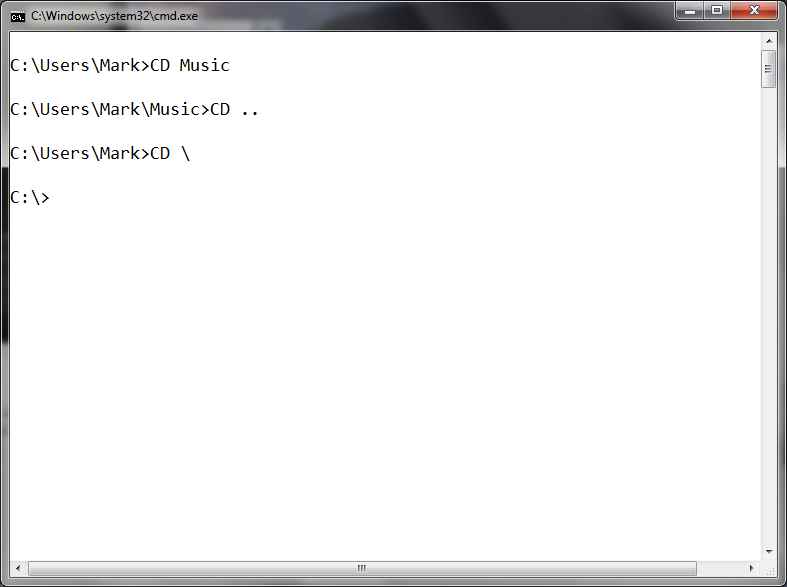
The "CD path" command will change from the current working directory to a directory below it assuming there is a directory by that name. You can transverse several directories at one time if you know the correct set of paths sometimes referred to as the "legal path". For example, if you were at the root of the C: drive a command of "CD windows\system32" would then make the system32 folder the default working folder.
CD .. (parent)
The "CD .." command will change from the current working directory to a directory above it assuming there is a directory. If the you are in the root directory, the system will keep you at the root.
CD \ (root)
The "CD \" command will change from the current working directory to the root directory no matter what your location is currently on the tree.
Other examples:
CD \windows (move to the windows directory - absolute)
CD \ (move to the root since starts with \ - absolute)
CD \windows\system32 (move to the system32 directory - absolute)
CD ..\.. (move to the root from the previous step - relative)
Thinking: Why be able to move to the root in one command?
Key terms: CD, parent, path, root, working directory
Resources:
To maximize your learning, please visit these Web sites and review their content
to help reinforce the concepts presented in this section.
Quick links:
CD Command @ Wikipedia
Notes on navigation: Click inside the frame to navigate the embedded Web page. - Click outside the frame to navigate this page to scroll up/down between the embedded Web pages. - Click on the frame title to open that page in a new tab in most browsers. - Click on the the "Reload page" link to reload the original page for that frame.
CD Command @ Wikipedia |
Reload page
|
If frame is empty, click on the link to view the page in a new tab or window
Sections: 1 | 2 | 3 | 4 | 5 | 6 | 7 | 8 | Index | Next >