Click on image to enlarge.
Sections: 1 | 2 | 3 | 4 | 5 | 6 | 7 | 8 | 9 | Index | Next >
Learning objective: (3) Demonstrate the use of the ls command
Click on image to enlarge.
ls [path] command to list file/folders
The "ls" command list directory contents of a given directory. If the directory is omitted, the listing is given for the current working directory. There are many switches for this command. They can be discovered by "ls --help".
ls (names)
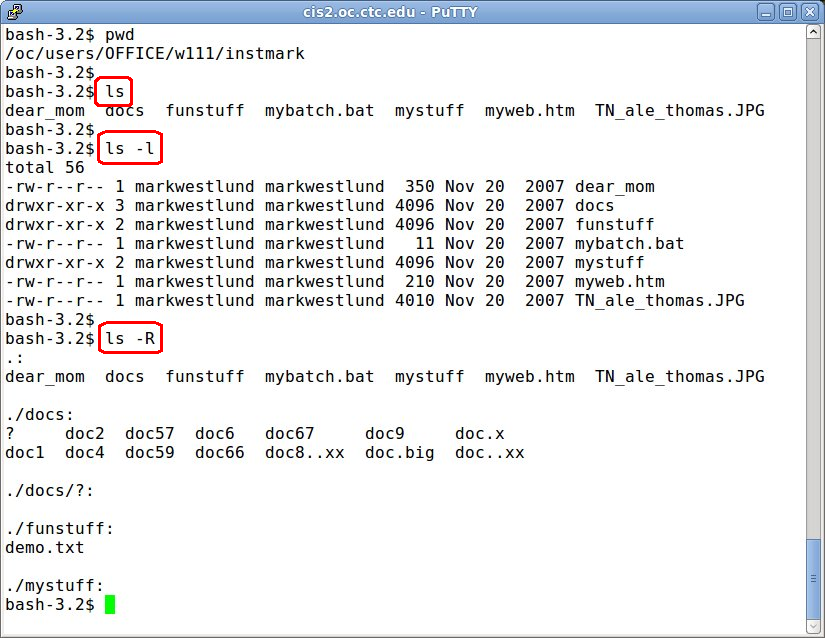
The "ls" command by itself list the names files and folder. In this example, the command "ls" shows the files and folders of the home directory.
ls -l (details)
The "-l" switch list details for the (-)files and (d)directories. Note the first character for the "-" or "d" or other character to identify the type of object. It displays the type, permissions, owner, size, date, and filename. Next is the owner and group. The size of the object. Directories in Linux are 4096 bytes in size. The date last modified. And finally, the name of the object. Depending on the permissions, there may be color to bring attention to the file or directory. In general, directories may be blue, basic files black, and scripts green.
ls -R (subdirectories)
The "-R" switch (note the upper case) list all the subdirectories and files below the location of the command. In this example, the command "ls -R my-documents" shows the directories docs, funstuff, and mystuff and the files in each.
DOS: DIR [/W] [/S]
The equivalent in DOS would be "DIR" and switches like "/W" for width and "/S" for subdirectories.
Thinking: Why is color coding helpful in the directory listing?
Key terms: directory, file, path, permissions
Resources:
To maximize your learning, please visit these Web sites and review their content
to help reinforce the concepts presented in this section.
Quick links:
Unix LS Command: 15 Practical Examples
ls(1) - Linux man page
ls @ Wikipedia
dir_colors(5) - Linux man page
Notes on navigation: Click inside the frame to navigate the embedded Web page. - Click outside the frame to navigate this page to scroll up/down between the embedded Web pages. - Click on the frame title to open that page in a new tab in most browsers. - Click on the the "Reload page" link to reload the original page for that frame.
Unix LS Command: 15 Practical Examples |
Reload page
|
If frame is empty, click on the link to view the page in a new tab or window
ls(1) - Linux man page |
Reload page
|
If frame is empty, click on the link to view the page in a new tab or window
ls @ Wikipedia |
Reload page
|
If frame is empty, click on the link to view the page in a new tab or window
dir_colors(5) - Linux man page |
Reload page
|
If frame is empty, click on the link to view the page in a new tab or window
Sections: 1 | 2 | 3 | 4 | 5 | 6 | 7 | 8 | 9 | Index | Next >