Click on image to enlarge.
Sections: 1 | 2 | 3 | 4 | 5 | 6 | 7 | 8 | 9 | 10 | 11 | Index | Next >
Learning objective: Explain the use of absolute paths
Click on image to enlarge.
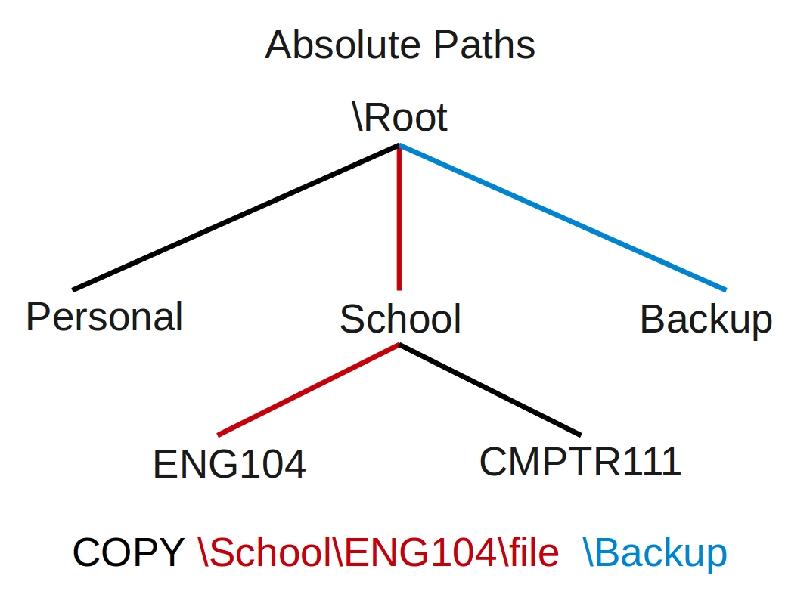
To copy a file using only absolute references, you would include the path from the root to the source or target destination. It is up to the user to know the full source and destination paths when executing this command. In this example, if we wanted to copy a file, like termpaper.doc, from ENG104 directory to the Backup directory, the command would be:
COPY \School\ENG104\termpaper.doc [space] \Backup
Other examples:
To copy a file from the Personal directory to the School directory:
COPY \Personal\file.txt [space] \School
To copy a file from the ENG104 directory to the CMPTR111 directory:
COPY \School\ENG104\file.txt [space] \School\CMPTR111
To copy a file from the ENG104 directory to the root "\":
COPY \School\ENG104\file.txt [space] \
Thinking: If all paths start at the root with absolute path referencing, what are the benefits?
Key terms: absolute path, directory, file, path, root
Resources:
To maximize your learning, please visit these Web sites and review their content
to help reinforce the concepts presented in this section.
Quick links:
Absolute path @ Wikipedia
Notes on navigation: Click inside the frame to navigate the embedded Web page. - Click outside the frame to navigate this page to scroll up/down between the embedded Web pages. - Click on the frame title to open that page in a new tab in most browsers. - Click on the the "Reload page" link to reload the original page for that frame.
Absolute path @ Wikipedia |
Reload page
|
If frame is empty, click on the link to view the page in a new tab or window
Sections: 1 | 2 | 3 | 4 | 5 | 6 | 7 | 8 | 9 | 10 | 11 | Index | Next >