Click on image to enlarge.
Sections: 1 | 2 | 3 | 4 | 5 | 6 | 7 | 8 | 9 | 10 | 11 | Index | Next >
Learning objective: Explain the organization of hierarchical filing systems
Click on image to enlarge.
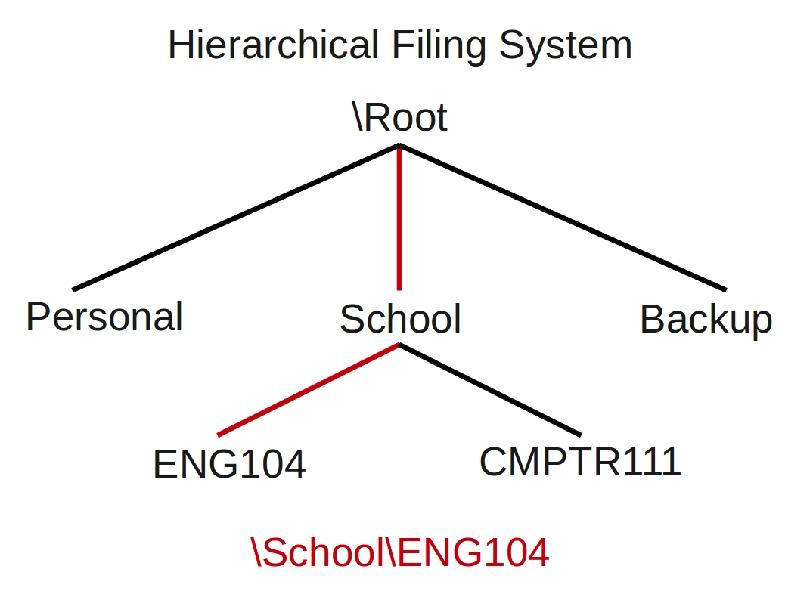
For users, one of the main functions of the operating system they deal with directly on an ongoing basis is managing their files. For many users, this is one of the most confusing areas of using a computer. Part of this confusion comes from the sheer number of folders and files found on a modern computer. Another is the use of a hierarchical filing systems which represents an upside down branch system of a tree. It has a singular top, called the root, and many branches going down, but with only one way back to the root. You can think of each singular branch as a folder and the leaves as files. This is such an issue for many users that vendors, like Microsoft, now suggest to developers that they use a default directory called "My Documents" or similar schemes so users do not need to worry as much about "managing" their files.
In this hierarchical directory example, the path to get to the ENG104 directory would require that you start at the root, and then go down to the School directory to get to the ENG104 directory. This is called the path. Each directory in the path is separated by a slash. The first slash represent the root as the starting place. So, if a path starts with a slash, it is referencing the root directory. Unix and Linux use a forward slash and Microsoft uses a back slash for path representations. The example path would be referenced as: \School\ENG104. The root is represented as the first "\" backslash. All other backslashes are used as path separators.
Thinking: Why not have multiple paths up as well as down?
Key terms: My Documents, directory, hierarchical filing systems, path, root
Resources:
To maximize your learning, please visit these Web sites and review their content
to help reinforce the concepts presented in this section.
Quick links:
Root directory @ Wikipedia
Hierarchical system @ Wikipedia
My Documents @ Wikipedia
Notes on navigation: Click inside the frame to navigate the embedded Web page. - Click outside the frame to navigate this page to scroll up/down between the embedded Web pages. - Click on the frame title to open that page in a new tab in most browsers. - Click on the the "Reload page" link to reload the original page for that frame.
Root directory @ Wikipedia |
Reload page
|
If frame is empty, click on the link to view the page in a new tab or window
Hierarchical system @ Wikipedia |
Reload page
|
If frame is empty, click on the link to view the page in a new tab or window
My Documents @ Wikipedia |
Reload page
|
If frame is empty, click on the link to view the page in a new tab or window
Sections: 1 | 2 | 3 | 4 | 5 | 6 | 7 | 8 | 9 | 10 | 11 | Index | Next >