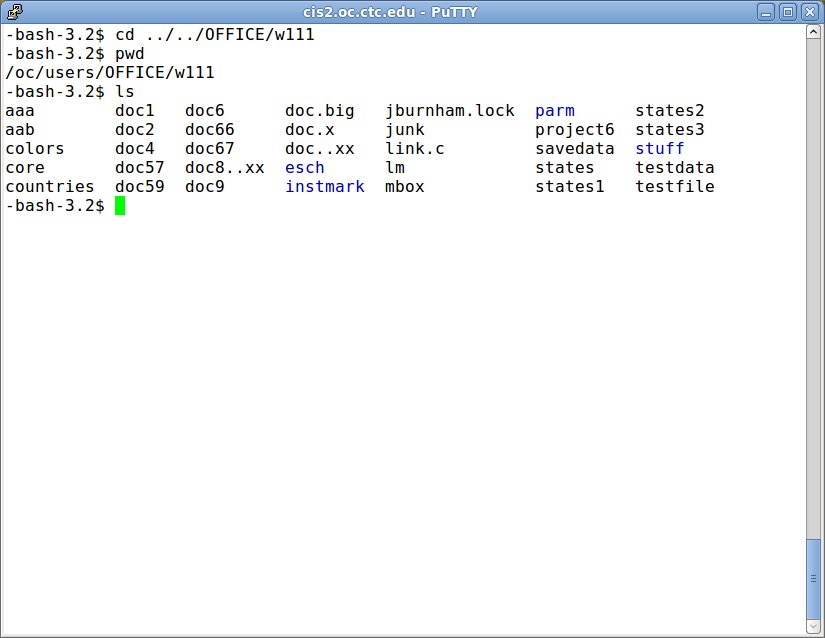
Click on image to enlarge.
Sections: 1 | 2 | 3 | 4 | 5 | 6 | 7 | 8 | 9 | Index | Next >
Learning objective: (2) Explain the purpose of command line interface in Linux
Click on image to enlarge.
"...if you spend all your time in the GUI, you're missing out. The Linux command-line gives you a lot of power -- it lets you do tasks that are difficult or impossible with the GUI, and for tasks that you do a lot, such as launching the same applications everyday, it's often faster. When you read about using the command line, which is often abbreviated to CLI for 'command-line interface', they usually mean typing commands into a terminal. This is a term leftover from the olden days of interfacing with mainframes via dumb terminals which had no processing power of their own; they were pretty much just monitors and keyboards. When we refer to a Linux terminal it's a software application, and if you want to get technical it's a terminal emulator." -Akkana Peck [LinuxPlanet]
The command line is an interface that allows you to talk directly to your computer using words called commands. If you know the correct commands, then you can start any program, check your computer's status, and see what files you have stored without having to find the listing in your menu. Also, some functions can only be accessed through the command line, so if you want to truly understand your new system it is worth learning. [Free Software Magazine]
Command prompt # $ %
A command prompt (or just prompt) is a sequence of (one or more) characters used in a command-line interface to indicate readiness to accept commands. Its intent is to literally prompt the user to take action. A prompt usually ends with one of the characters $, %, #, :, > and often includes other information, such as the path of the current working directory. On many Unix system and derivative systems, it is common for the prompt to end in a $ or % character if the user is a normal user, but in a # character if the user is a superuser ("root" in Unix terminology). It is common for prompts to be modifiable by the user. Depending on the environment, they may include colors, special characters, and other elements like the current time, in order, for instance, to make the prompt more informative or visually pleasing, to distinguish sessions on various machines, or to indicate the current level of nesting of commands. [Wikipedia]
Cryptic commands
A Little History. The commands used at the command line may seem a little cryptic due to their tendency to be very short. This is because the roots of the Linux command line are from systems where a single letter entry could take a significant amount of time to travel from a terminal, to a central server and back to the terminal where it was printed onto a roll of paper. In those old systems, the shorter the input was, the better as it meant less time waiting to issue your command and receive output. The best thing you can do to remember what commands stand for is to find out what word the command is an abbreviation for. This can go a long way to remembering the command later. [Wikibooks]
Case sensitive
When interacting with the Unix based operating system, like Linux, one of the first things you need to know is that, unlike other computer systems you may be accustomed to, everything in Unix is case-sensitive. Be careful when you're typing in commands - whether a character is upper or lower case does make a difference. For instance, if you want to list your files with the 'ls' command, if you enter 'LS' you will be told "command not found." Worse than the system not finding the command is the possibility that you will cause a function to be performed that you didn't want to happen. For example, in the 'vi' editor, 'j' means to move down one line and 'J' means to join two lines together. If you should leave "caps lock" on by accident and then start pressing the 'j' key to move the cursor down through the text, you will find all the lines jumping up to join the previous lines. This is simply a word to the wise to keep the case of characters in mind while working in Unix. [University of Washington]
/ Path separator
Linux uses a forward slash / to represent the root and as the path separator. Example: /root/usr/bobsmith/docs/mydocument.doc
Thinking: Why is the command line interface so techie?
Key terms: case sensitive, command line interface, commands, path separator, prompt
Resources:
To maximize your learning, please visit these Web sites and review their content
to help reinforce the concepts presented in this section.
Quick links:
The Linux CLI for Beginners, or, Fear Not the Linux Command Line!
Command-line interface
A beginner’s introduction to the GNU/Linux command line
Linux Guide/Using the shell
On Unix File System's Case Sensitivity
Notes on navigation: Click inside the frame to navigate the embedded Web page. - Click outside the frame to navigate this page to scroll up/down between the embedded Web pages. - Click on the frame title to open that page in a new tab in most browsers. - Click on the the "Reload page" link to reload the original page for that frame.
The Linux CLI for Beginners, or, Fear Not the Linux Command Line! |
Reload page
|
If frame is empty, click on the link to view the page in a new tab or window
Command-line interface |
Reload page
|
If frame is empty, click on the link to view the page in a new tab or window
A beginner’s introduction to the GNU/Linux command line |
Reload page
|
If frame is empty, click on the link to view the page in a new tab or window
Linux Guide/Using the shell |
Reload page
|
If frame is empty, click on the link to view the page in a new tab or window
On Unix File System's Case Sensitivity |
Reload page
|
If frame is empty, click on the link to view the page in a new tab or window
Sections: 1 | 2 | 3 | 4 | 5 | 6 | 7 | 8 | 9 | Index | Next >